

Subtitling Guidelines for Social Media Videos
Published: 18 December 2025
Learn how to add subtitles to your social media videos.
All videos should be subtitled before sharing on the University of Glasgow and affiliated social media channels for accessiblity purposes.
Our preferred format is to add subtitles directly to videos (also known as burned-in or open captions) during editing rather than using closed captions, external files, or autogenerated by platforms. This means subtitles are always accessible and compatible across all formats and devices.
You may want to use closed captions or YouTube’s automatic captions feature for longer videos. Be sure to check for spelling errors.
Our house style is subtitles is:
- No more than two lines of text
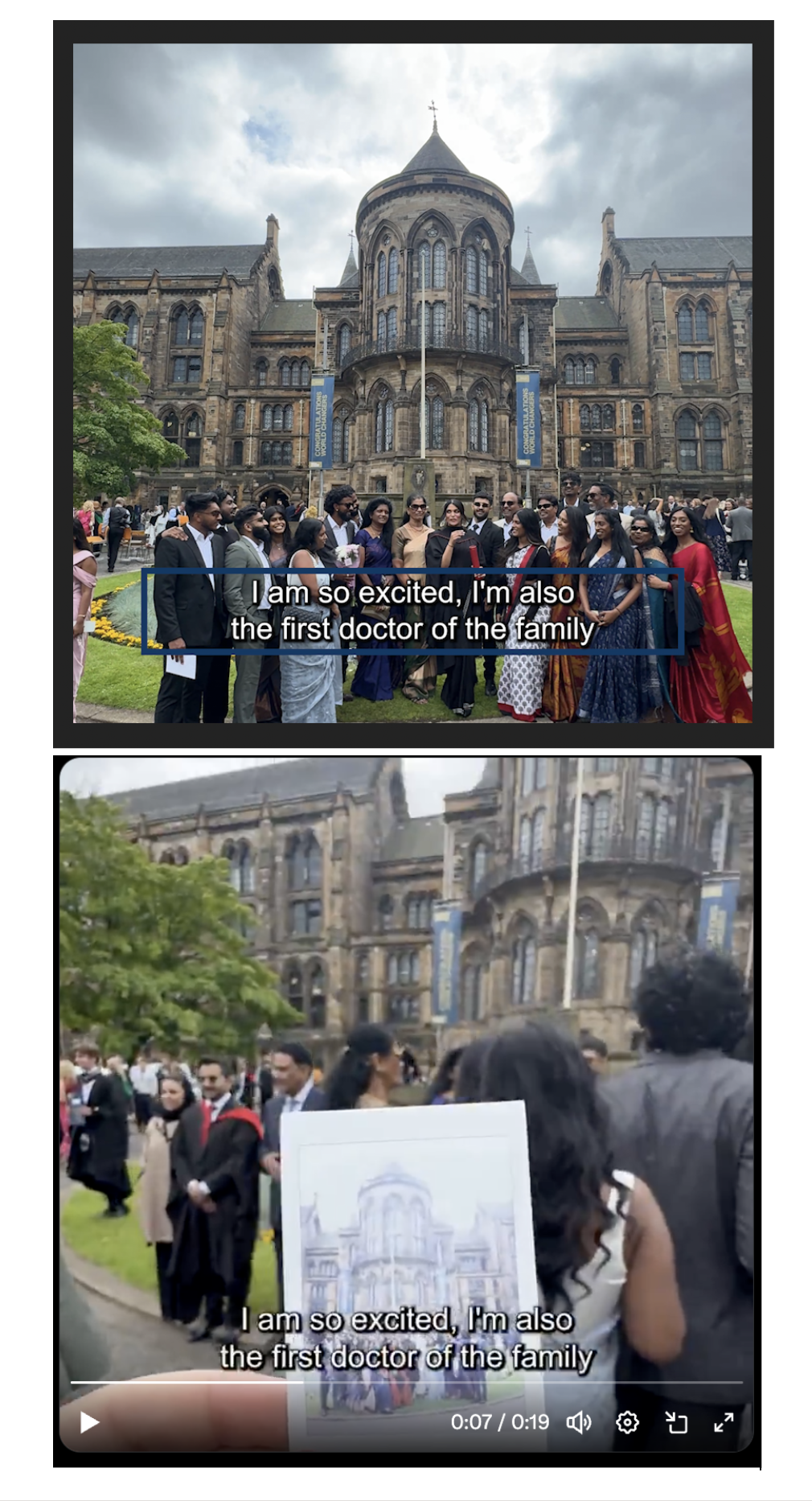
- Placed in the central lower portion of the screen
- No full stops at the end of sentences. To indicate a new sentence, start a new line.
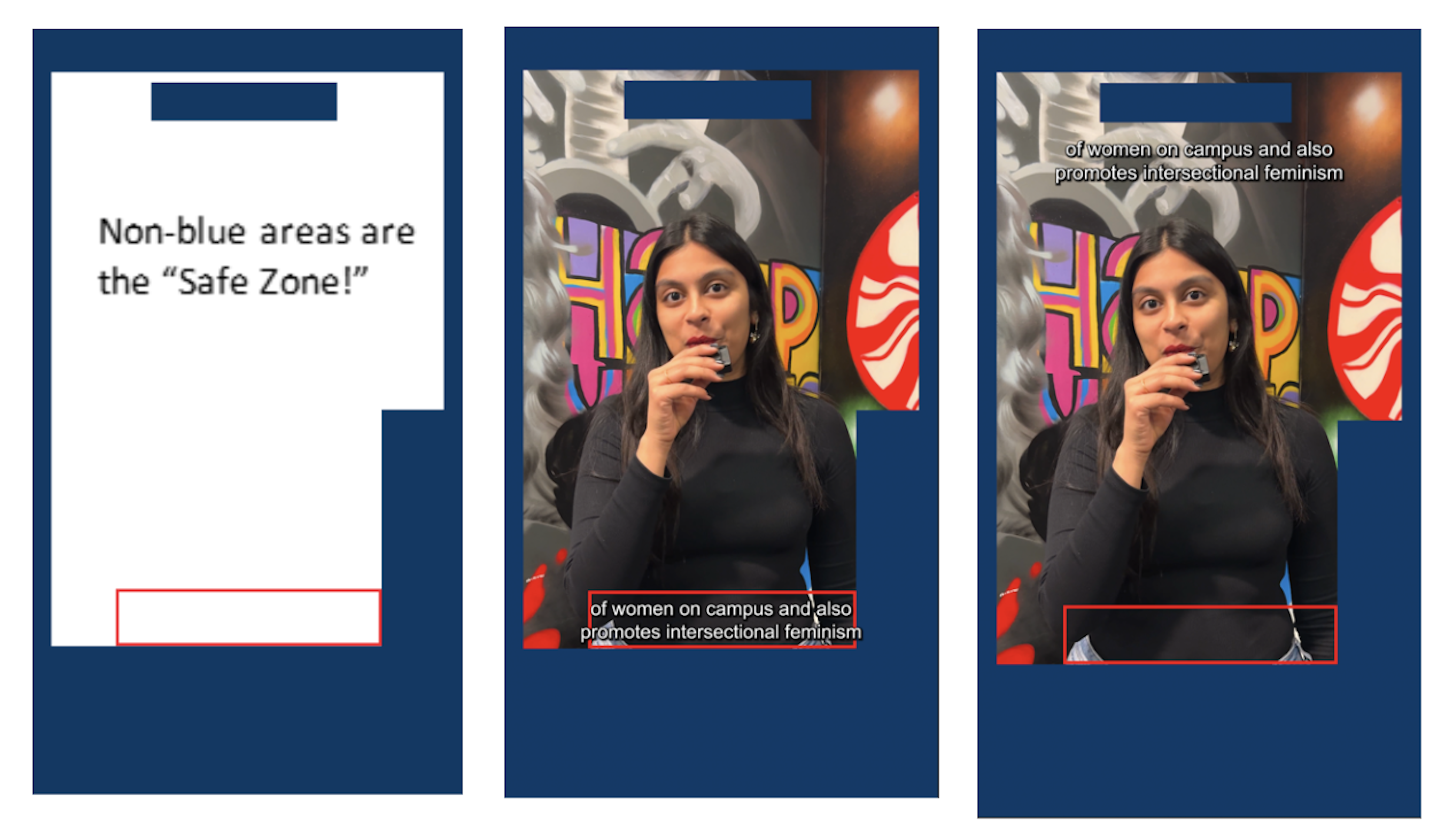
Subtitles must stay within the safe zone so they can be read clearly and are not covered by captions, text or icons when viewed on social media platforms.
Please refer to the example template below. The blue areas should be avoided where possible. The red square is the ideal zone for subtitles or under the blue square at the top, depending on your subject.
Download Safe Zone Subtitling Guides
Subtitle Template for Vertical Video.png
Subtitle Template for Square Video.png
Font
Please use a stroke and shadow around the letters to ensure your captions are legible. To maintain consistency, refer to the options below based on your editing platform.
Premiere Pro
When creating captions with the text toolset, after transcribing, use the default options: maximum character length to 42, minimum duration to three, and lines to double.
Arial Regular, size 48, fill colour white, stroke colour black, 3.0 width
Shadow black: 100%, 135°, 3.0, 6.0. 12
Some of your captions may have auto-generated to carry over three lines. Make sure you manually edit your subtitles to check for spelling mistakes and ensure they are double-lined and within the safe zone.
CapCut
Default template, system font with no effects/ animations added.
Under the Styles tab, select the first option (white font with black outlines). Adjust the slider to size 8 and set the opacity to 100%.
Set the stroke to 30 and add a background if needed.
Tip: You can add the safe zone template as an “overlay” to check that you’re in the safe zone!

The app currently offers six caption options for creating and editing reels. Ideally, you should use the first two options, which are in lowercase and less animated than the others.
TikTok
Use the default classic but more options when editing in CapCut.
Other considerations when subtitling:
- Indicate non-speech sounds in square brackets [clapping], [cheering] and [music], for example
- Ensure your captions appear and disappear correctly, matching the rhythm of speech
- Remove unnecessary filler words such as “ums” and “ahs”
- Avoid using single-word or heavily animated captions
- If you have a busy background making your subtitles hard to read, use a grey box if needed
If you need assistance or have further questions, don't hesitate to get in touch with the Social Media Team at socialmedia@glasgow.ac.uk.
Examples
First published: 18 December 2025